Timeline View beta
The Timeline View is a custom Craft field type that displays a chronological history of all lifecycle events for an order. It appears on the order edit page in the Craft Commerce control panel.
Overview
The Timeline View has two sections:
- Statistics Table - Key timing milestones for the order
- Event Timeline - Chronological list of all recorded events with expandable snapshots
Adding to Your Order Layout
The Timeline View must be added to the order field layout before it appears:
- Go to Commerce → System Settings → Order Field Layout
- Drag the Order Lifecycle field type into your layout
- Save the layout
Statistics Table
The statistics table shows four key timestamps and the durations between them:
| Metric | Description |
|---|---|
| Order Started | When the cart was first created (cartCreated event) |
| Order Completed | When the order was completed, plus duration from cart creation |
| First Transaction | When the first payment transaction occurred, plus duration from cart creation |
| Order Paid | When the order was fully paid, plus duration from first transaction |
If a milestone hasn't been reached yet, the duration shows a dash (-).
Event Timeline
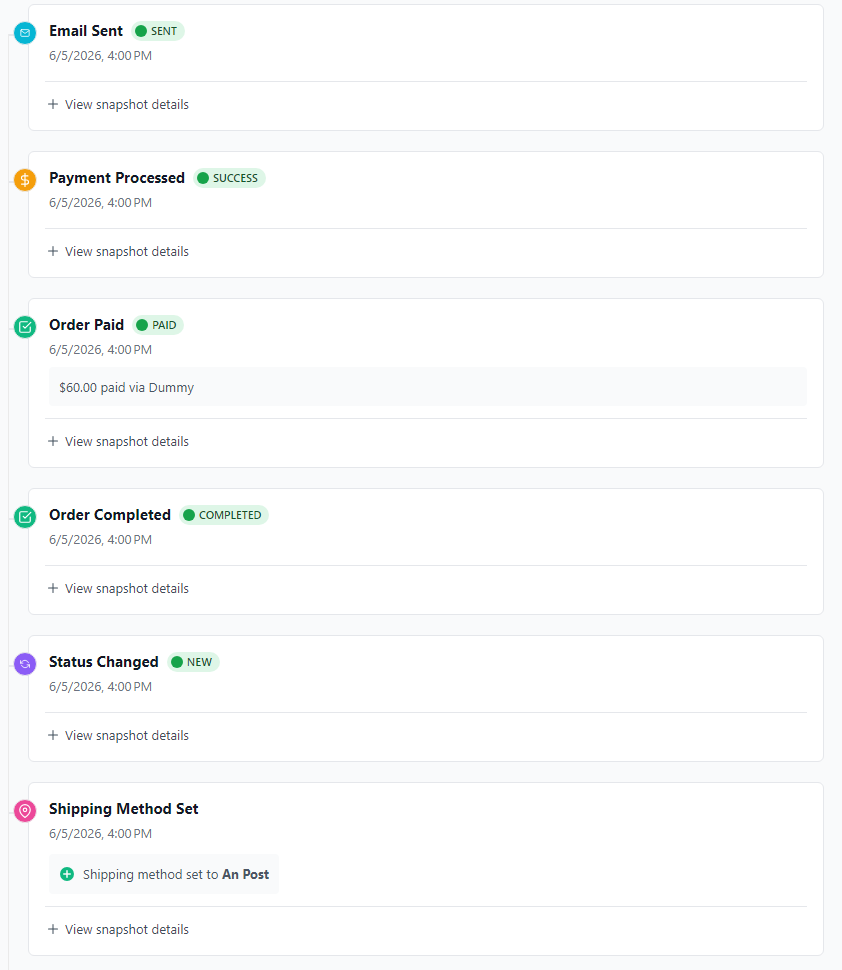
Events are listed in reverse chronological order (newest first). Each entry shows:
- Icon - Colour-coded by event category
- Event name - Human-readable label
- Status badge - For payment and email events
- Timestamp - When the event occurred
- Message - Auto-generated or custom description of what changed
- Snapshot - Expandable JSON with the full order state at that moment
Event Categories and Icons
Cart Events (Blue)
- Cart Created
- Cart Updated
- Line Item Added
- Line Item Removed
- Line Item Updated
Order Events (Green)
- Order Completed
- Order Paid — message shows the amount paid and gateway, e.g. "€60.00 paid via Stripe"
- Status Changed
Payment Events (Orange/Red)
- Payment Attempt
- Payment Processed
- Payment Authorized
- Payment Captured
- Payment Refunded
- Payment Transaction
Payment entries show a status badge:
- 🟢 Success - Payment succeeded
- 🔴 Failed - Payment failed
- 🟠 Pending - Payment pending
Payment attempt logging
paymentAttempt entries are only recorded when a payment fails. A successful first-try payment produces no attempt entry at all, keeping the timeline uncluttered. An order that required retries will show one paymentAttempt entry per failed attempt, followed by the successful paymentProcessed entry.
Address Events (Pink)
- Shipping Address Set
- Shipping Address Removed
- Billing Address Set
- Billing Address Removed
When a billing or shipping address is changed, the timeline message lists exactly which fields changed and their before/after values rather than a generic "Address Set". For example:
First Name changed from John to Jane, Postal Code changed from D01 to D02
Only the modified fields are included, so the message is a precise diff of what the customer (or an admin) altered. A first-time address assignment with no prior value still reads as "Address Set".
Customer Events (Purple)
- Customer Set - Customer email assigned to the order
- Customer Removed - Customer email removed
Coupon Events (Yellow)
- Coupon Applied
- Coupon Removed
Shipping Events
- Shipping Method Set
Email Events (Cyan/Red)
- Email Sent
- Email Failed
Checkout Events
- Checkout Started
Snapshot Details
Click View snapshot details on any event to expand the full JSON snapshot captured at that moment. The snapshot structure includes:
{
  "order": {
    "id": 123,
    "number": "abc123",
    "isCompleted": false,
    "couponCode": null,
    "totalQty": 2,
    "totalPrice": 49.99,
    "currency": "EUR",
    "statusId": 1,
    "statusHandle": "pending",
    "shippingMethodHandle": "standard",
    "shippingMethodName": "Standard Shipping",
    "shippingAddressId": 456,
    "billingAddressId": 789
  },
  "customer": {
    "email": "[email protected]",
    "isGuest": true,
    "customerId": null,
    "userId": null
  },
  "lineItems": [
    { "sku": "WIDGET-A", "qty": 2, "subtotal": 49.99 }
  ],
  "discounts": [],
  "shippingAdjustments": [],
  "taxAdjustments": [],
  "addresses": {
    "billingCountry": "IE",
    "shippingCountry": "IE"
  },
  "payload": {}
}
Payment and email events also include the relevant transaction or email data in the payload key.
Empty State
When no events have been recorded yet, the timeline shows:
No Order lifecycle events yet
Events will be recorded as customers interact with this order.
Technical Details
Field Type
- Class:
johnhenry\orderlifecycle\fields\OrderLifecycleField - The field validates that Craft Commerce is installed and the element is a saved Order before rendering
Best Practices
- Debugging - Expand snapshot details to inspect the exact order state at the time of a failed payment or unexpected behaviour
- Customer Support - Reference the timeline when investigating order issues with customers
- Performance Analysis - Use the statistics table to spot checkout bottlenecks
Related Documentation
- Event Tracking - What events are tracked and how
- Configuration - Enable or disable event categories
- Statistics - Understanding the timing statistics