
Statistics beta
Per-Order Statistics Table
The statistics table appears at the top of the Order Lifecycle field on every order edit page. It shows four key milestones and the durations between them.
Order Started
The timestamp of the cartCreated event - the beginning of the customer's journey.
Order Completed
The timestamp of the orderCompleted event, plus the elapsed time since Order Started.
First Transaction
The timestamp of the first payment* event, plus the elapsed time since Order Started.
Order Paid
The timestamp of the orderPaid event, plus the elapsed time since First Transaction.
If a milestone hasn't occurred yet, its duration shows a dash (-).
Duration Formats
| Range | Format | Example |
|---|---|---|
| Under 1 minute | Seconds | 45s |
| 1 minute – 1 hour | Minutes and seconds | 5m 30s |
| 1 hour – 24 hours | Hours and minutes | 2h 15m |
| Over 24 hours | Hours and minutes | 26h 45m |
Store Dashboard
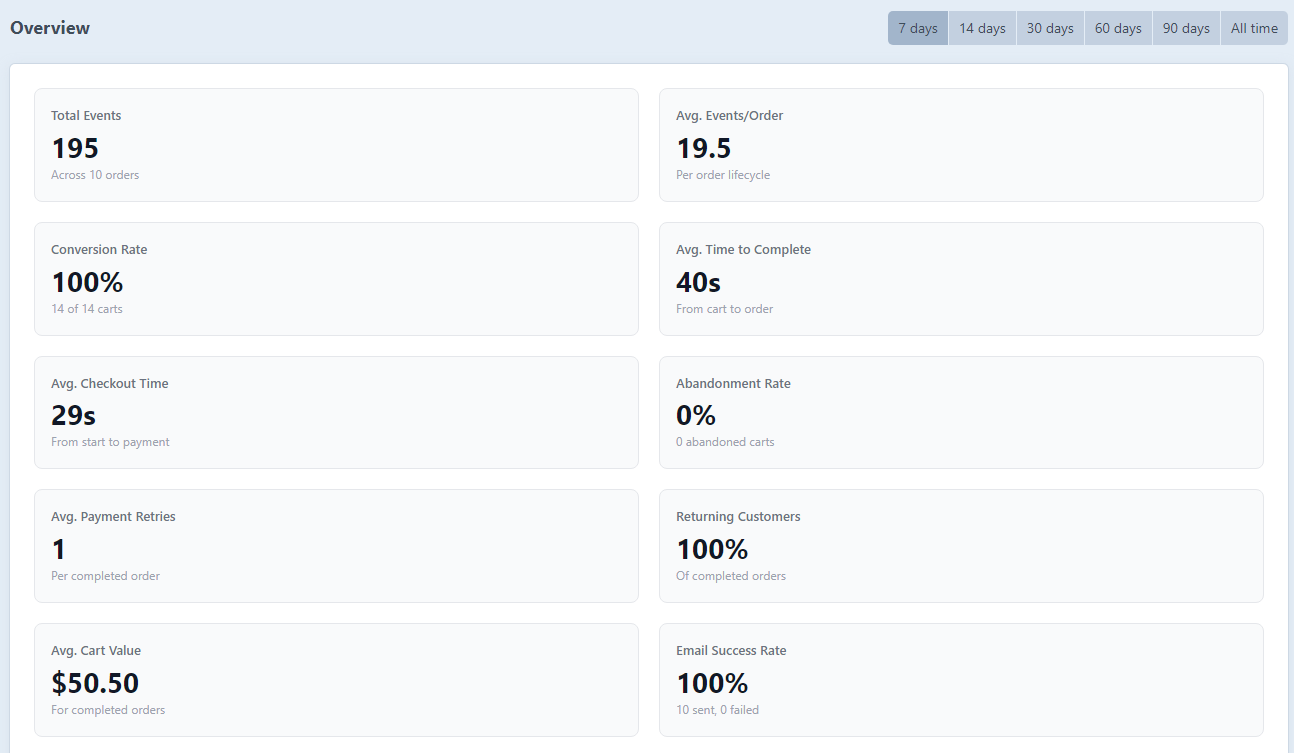
The dedicated Order Lifecycle section in the Craft control panel is the primary place for store-wide metrics. Navigate to Order Lifecycle → Overview in the sidebar.
Time Window
Switch periods using the button group in the top-right corner of the page. Available windows: 7, 14, 30, 60, 90 days, or All time (no date filter).
The All time view includes every log since the plugin was installed. Trend indicators are not shown for the all-time view since there is no equivalent prior period to compare against.
Metrics
- Total lifecycle log entries
- Unique orders tracked
- Average logs per order
- Top 5 event types by frequency
- Average time to order completion
- Conversion rate (carts created → orders completed)
- Avg. Checkout Time - time from the
checkoutStartedevent to the payment. Shows blank when no checkout-start event was recorded for the orders in the window (e.g. admin- or API-created orders that skip checkout tracking) - Cart abandonment rate
- Avg. Payment Retries - the average number of retries among orders that actually needed them. A value of
0means the order paid on the first try - and, as noted in the Timeline View, that first successful attempt is not shown in the timeline - Returning Customers % - the share of customers who had a prior completed order matched by email address
- Average cart value
- Email success rate
Rounding
All rate and percentage metrics are rounded to 1 decimal place (e.g. 53.5%, 1.1 retries).
Trend Chips
Each metric card that supports trending shows a small coloured trend chip (a ↑ / ↓ badge) inline with the stat number, comparing the selected period to the equivalent prior period:
| Badge | Meaning |
|---|---|
| ↑ 12% | Metric increased by 12% relative to the prior period |
| ↓ 5% | Metric decreased by 5% relative to the prior period |
| → <1% | Change is negligible (under 1%) |
Colour follows the direction that benefits the store - green for improvements (e.g. conversion up, abandonment down), red for deteriorations. If the prior period had no data the badge is omitted.
Trends are computed for: total events, unique orders, conversion rate, abandonment rate, and email success rate. The period note at the bottom of the page indicates which window is being compared.
Trends are cached alongside the rest of the stats (5-minute TTL), so switching periods updates the comparison immediately.
Alert Banners
If any key metric crosses a concerning threshold an amber or red banner is displayed above the stat grid. Alerts fire when:
| Condition | Threshold | Notes |
|---|---|---|
| No orders tracked | 0 unique orders | Only fires for period-based views, not all time |
| High abandonment | > 75% | Requires at least 5 carts in the period |
| Email failures | Success rate < 90% | Requires at least 5 emails sent or failed |
| Payment friction | Avg attempts > 2 | Requires at least 5 completed orders |
Alerts are informational - no action is taken automatically.
Dashboard Widget
The Order Lifecycle Stats dashboard widget is also available if you prefer stats on the main Craft dashboard alongside other widgets. Add it via Dashboard → Add a widget. It shows the same metrics as the Overview page for a configurable time window.
Accessing Data Programmatically
Use the logger service to retrieve log arrays for custom reporting:
use johnhenry\orderlifecycle\OrderLifecycle;

$logs = OrderLifecycle::getInstance()->logger->getLogsForOrder($order->id);

// Find key timestamps
$cartCreatedAt = null;
$orderCompletedAt = null;

foreach ($logs as $log) {
    if ($log['type'] === 'cartCreated' && $cartCreatedAt === null) {
        $cartCreatedAt = strtotime($log['dateCreated']);
    }
    if ($log['type'] === 'orderCompleted' && $orderCompletedAt === null) {
        $orderCompletedAt = strtotime($log['dateCreated']);
    }
}

if ($cartCreatedAt && $orderCompletedAt) {
    $minutes = ($orderCompletedAt - $cartCreatedAt) / 60;
    echo "Checkout took {$minutes} minutes";
}
getLogsForOrder() returns database rows as plain arrays. The dateCreated field is a datetime string - use strtotime() to convert it for arithmetic.
Use Cases
Spotting Checkout Bottlenecks
A long Order Started → Order Completed duration may indicate:
- A complex or confusing checkout flow
- Cart abandonment and return
- Customers comparison-shopping
Monitoring Payment Performance
A long First Transaction → Order Paid duration may indicate:
- Payment gateway latency
- 3D Secure authentication delays
- Failed attempts before a successful payment
Identifying Abandoned Carts
When Order Started has a value but Order Completed is empty, the cart is still active or abandoned. The widget tracks the store-wide abandonment rate.
Caveats
Active carts are included in stats
All dashboard metrics include carts that are still in progress at the time of calculation. This is noted at the bottom of the Overview page ("includes carts currently in progress").
This primarily affects Conversion Rate and Abandonment Rate. A cart created two hours ago that hasn't completed yet counts as "abandoned" in those calculations. Over longer windows (30–90 days) the skew is negligible. For a 7-day window it is more pronounced.
If you need precise conversion figures for a closed time window, use the Export feature to pull raw events into a spreadsheet or BI tool.
Deleted orders
When Craft purges or deletes an order (including Commerce's inactive cart purge), its lifecycle logs are automatically removed so they do not distort stats. This happens via Craft's element deletion event and is also included in Craft's garbage collection cycle.
If you have orphaned logs from orders deleted before this cleanup was in place, remove them with:
php craft order-lifecycle/logs/purge-orphanedLimitations
- Legacy orders: Events are only recorded after the plugin is installed. Orders created before installation will have no lifecycle data.
- Manual orders: Admin-created orders may skip the
cartCreatedevent. - API orders: Orders created via API may not trigger all Commerce events depending on the integration.
- Multiple payment attempts: "First Transaction" uses the earliest payment event timestamp.
Related Documentation
- Timeline View - Per-order event timeline
- Event Tracking - What events are logged
- Configuration - Enabling/disabling event categories
- Export - Exporting lifecycle events to CSV
- Services API - Programmatic access to log data