Assigning Deposits to Products
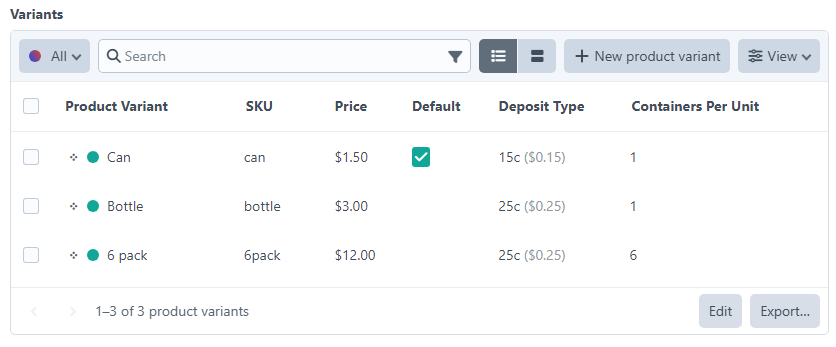
Each product (or variant) chooses zero or one deposit type via a custom field.
1. Add the field to your field layout
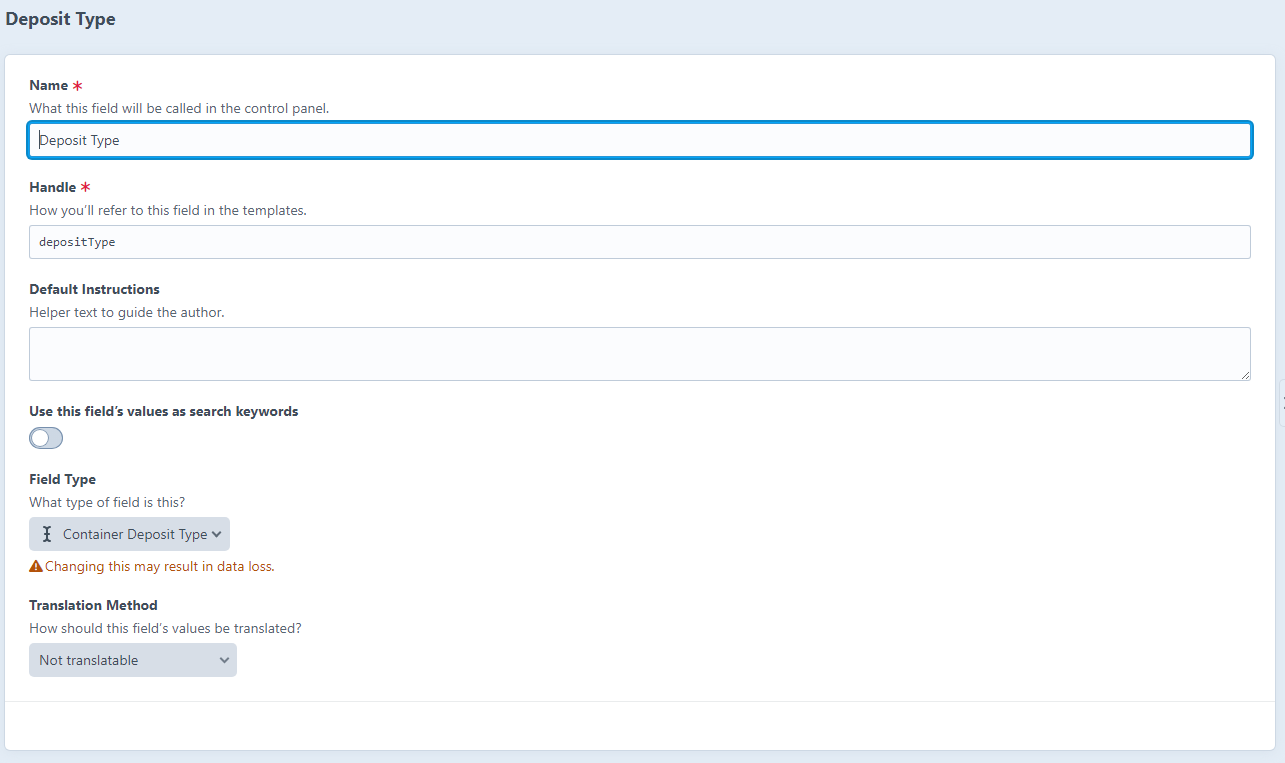
- Commerce → System Settings → Product Types → [Your type].
- On the Variants (or Product) tab, drag Container Deposit Type into the layout.
- Save.
2. Pick the deposit on each SKU
On each product/variant edit page, the new field appears as a dropdown listing every deposit type with its amount.
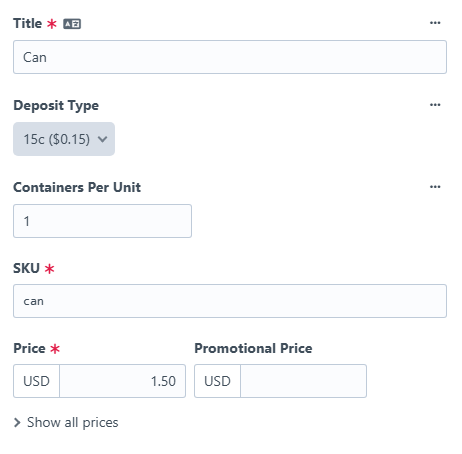
Pick the appropriate tier (e.g. Small Container - €0.15 for a 330 ml can) and save.
3. That's it
There is nothing to do on the front end. As soon as a shopper adds the product to their cart:
- The product's normal line item is added.
- A deposit line item appears alongside it with the deposit amount × quantity.
- Future quantity changes keep the deposit in sync.
TIP
Multiple products that share the same deposit type collapse into a single deposit line item with summed quantity. A cart with 2× 330 ml can + 3× 500 ml can produces one Small Container deposit line item with quantity 5.
Removing a deposit
Setting the field back to - None - and saving removes the deposit assignment. On the next cart recalculation, the deposit line item is dropped.